Covered By Health Insurance!

Covered By Health Insurance!
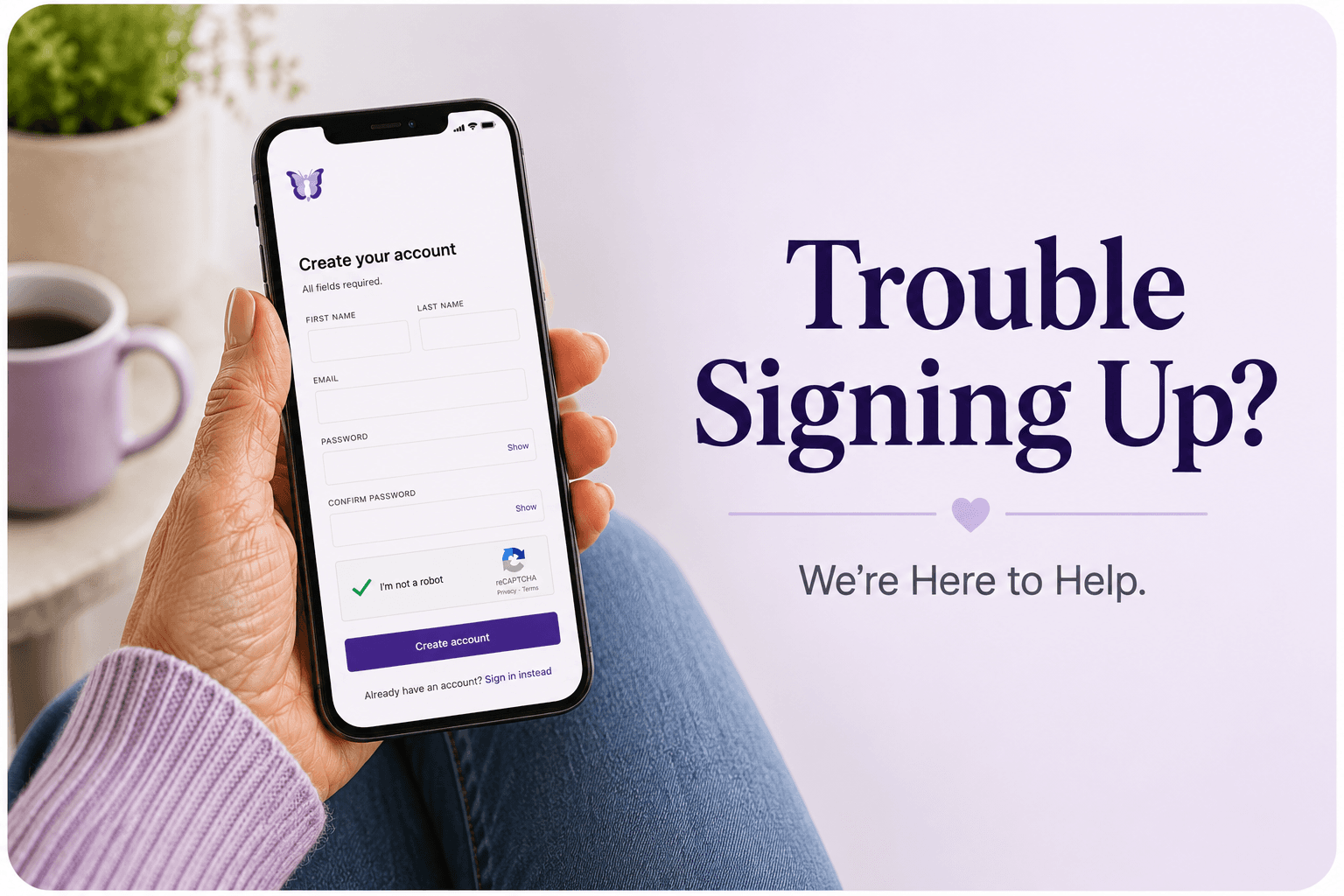
Trouble Signing Up To Book Your Visit?
By Barbra Hanna, DO, FACOG, MSCP, 05/30/2026
A quick troubleshooting guide to help you book your first visit — without the headache.
If you've landed here, you're probably about to start care with MyMenopauseRx — and you've hit a small bump getting signed up from your phone. First, take a breath. You're not doing anything wrong. Mobile browsers and apps can be finicky, and we've gathered the most common fixes our team uses every day to help patients create an account and book their first visit.
This guide walks you through quick checks for sign-up issues from your smartphone. Most patients are back on track in under five minutes.
Trouble signing up
Our sign-up form is built to work on any modern smartphone, but a handful of common culprits can stop it cold. Walk through these in order. Most patients’ issues are solved by step 3.
1. Check your browser
MyMenopauseRx works best on the latest version of Safari (iPhone) or Chrome (Android). In-app browsers (the mini-browsers that open when you tap a link inside Facebook, Instagram, or your email app) often block forms, autofill, and payment processing.
- On iPhone: Open Safari directly and type mymenopauserx.com into the address bar.
- On Android: Open Chrome directly and type mymenopauserx.com into the address bar.
- If you tapped a link from social media or email, look for a "Open in Browser" option in the menu (three dots) at the top right.
2. Update your phone's operating system
Older versions of iOS or Android can struggle with secure healthcare forms. Make sure your phone is updated:
- iPhone: Settings → General → Software Update
- Android: Settings → System → System update (the path varies by manufacturer)
3. Clear your cache or try a private window
Saved data from old visits can interfere with a new sign-up. Try opening a fresh private/incognito tab:
- Safari: Tap the tabs icon (bottom right) → tap "Private" → tap the + to open a new private tab.
- Chrome: Tap the three dots → "New Incognito tab."
If you'd rather clear your cache:
Safari → Settings app → Safari → Clear History and Website Data.
Chrome → three dots → History → Clear browsing data.
4. Turn off VPNs, ad blockers, and content blockers
These tools sometimes block the secure connections used by healthcare platforms. Temporarily disable them, refresh the page, and try again.
5. Check your Wi-Fi or cellular signal
A weak or unstable connection can cause forms to freeze mid-submit. If your Wi-Fi is spotty, try switching to cellular data (or vice versa) and reload the page.
6. Disable autofill if the form keeps glitching
Aggressive autofill can repeatedly overwrite fields like date of birth and address. If you see fields filling and re-filling themselves, turn autofill off temporarily:
- iPhone: Settings → Safari → AutoFill → toggle off.
- Android: Chrome → three dots → Settings → Autofill and payments → toggle off.
Still stuck? Take a screenshot of the screen where you're getting stuck and email it to our team at hello@mymenopauserx.com. A picture helps us solve it in one reply instead of three.
Quick FAQ
Q: Can I sign up on my computer instead?
A: Yes. You can create an account and book a visit from any laptop or desktop. Some people find using their computer to create an account easier. The screen is larger, and there are fewer finicky app roadblocks.
Q: The "Create Account" button is not working. What should I do?
A: Double-check that all required fields are completed, your passwords match, and you've completed the reCAPTCHA (I'm not a robot) verification. If the button still doesn't work, try refreshing the page or using a different browser.
Q: I created an account but can't log in.
A: Make sure you are using the same username and email address you used during registration. If you've forgotten your password, use the "forgot password" link to reset it. If you're still having trouble, we are happy to help.
We're here when you need us
Menopause care should feel easier than fighting with your phone. If any of these steps don't get you sorted, our patient support team genuinely wants to hear from you. Reach out anytime at hello@mymenopauserx.com or through the chat on our website.
Welcome to MyMenopauseRx. We're glad you're here.
The content is meant for educational purposes only. It is not intended to be a substitute for professional medical advice, diagnosis or treatment. Please seek the advice of your physician with any questions you may have regarding a medical condition.